Add to Cart Popup Settings
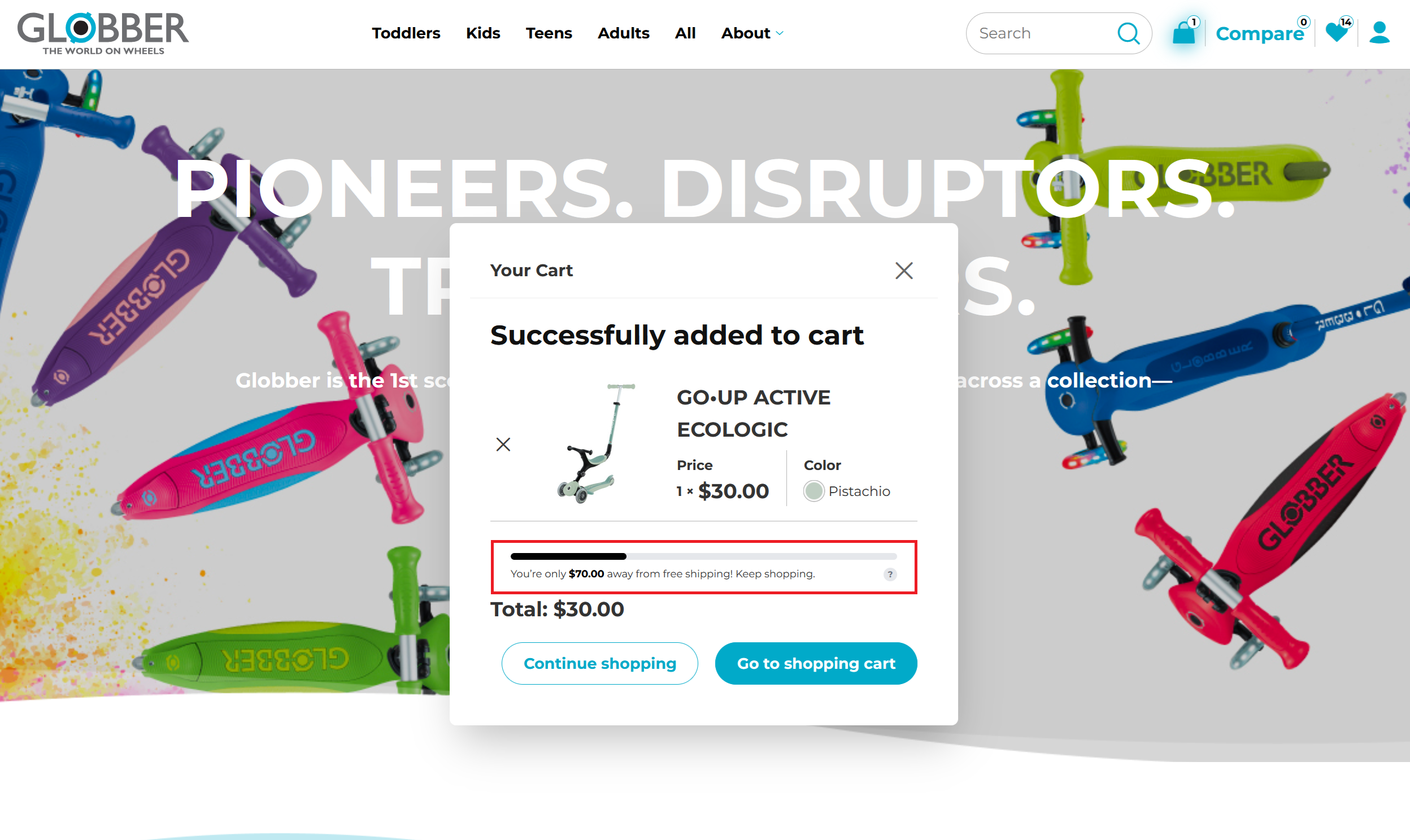
The Add to Cart Popup shows a mini cart after a customer adds a product to their cart. Use it to confirm the product was added, show cart contents, promote checkout, and highlight free shipping progress.
Where to Find the Settings
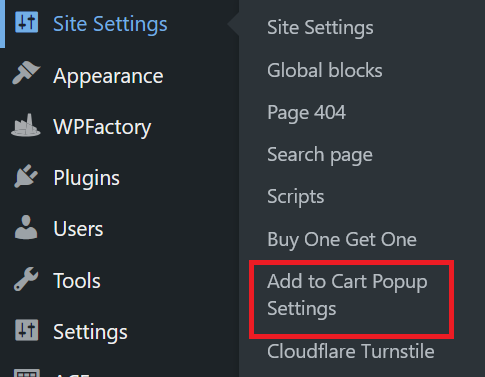
In WordPress, hover over Site Settings in the left-hand menu and click Add to Cart Popup Settings.
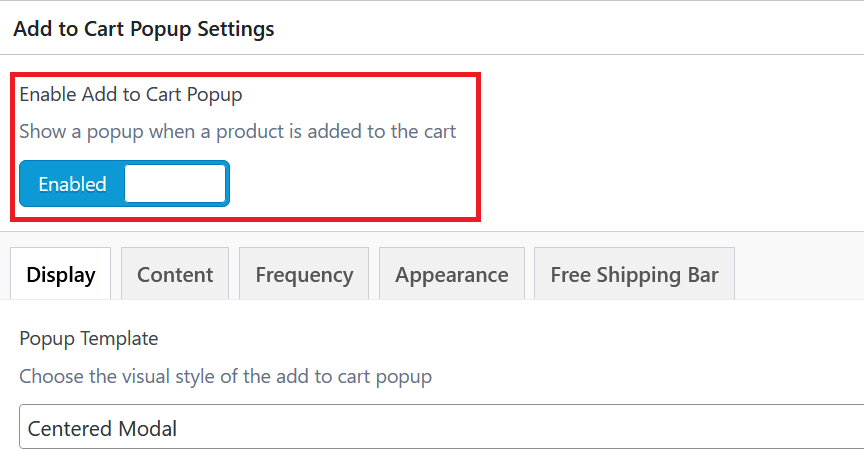
At the top of the page, use Enable Add to Cart Popup to turn the popup on or off.
Display
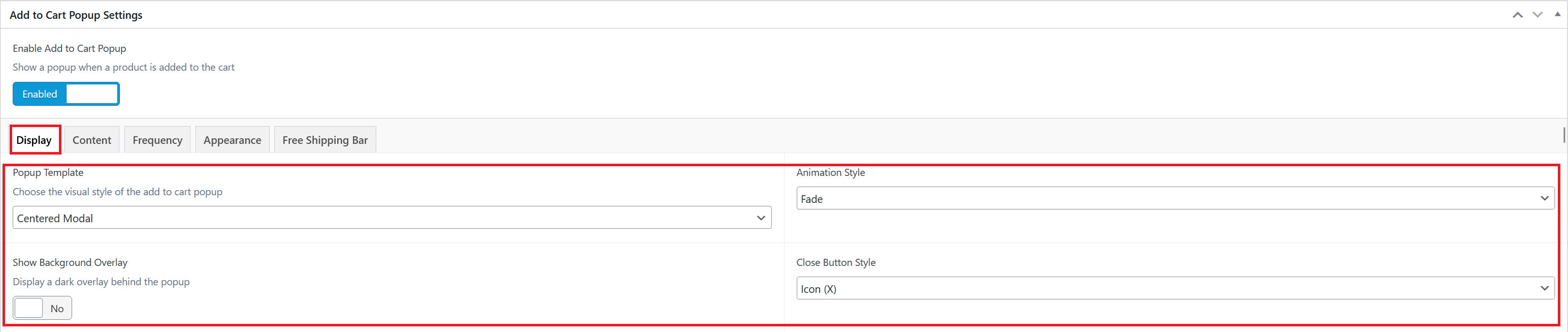
Use the Display tab to control how the popup appears.
| Setting | Description |
|---|---|
| Popup Template | Choose the popup layout: Slide-in Drawer, Centered Modal, or Corner Toast. |
| Slide Direction | For the slide-in drawer, choose whether it opens from the left or right. |
| Corner Position | For the corner toast, choose which corner it appears in. |
| Animation Style | Choose Fade, Slide, Scale, or None. |
| Show Background Overlay | Adds a dark overlay behind the popup. This does not apply to the corner toast template. |
| Close Button Style | Choose an X icon, text link, both, or no close button. |
Content
Use the Content tab to add optional content below the cart items.
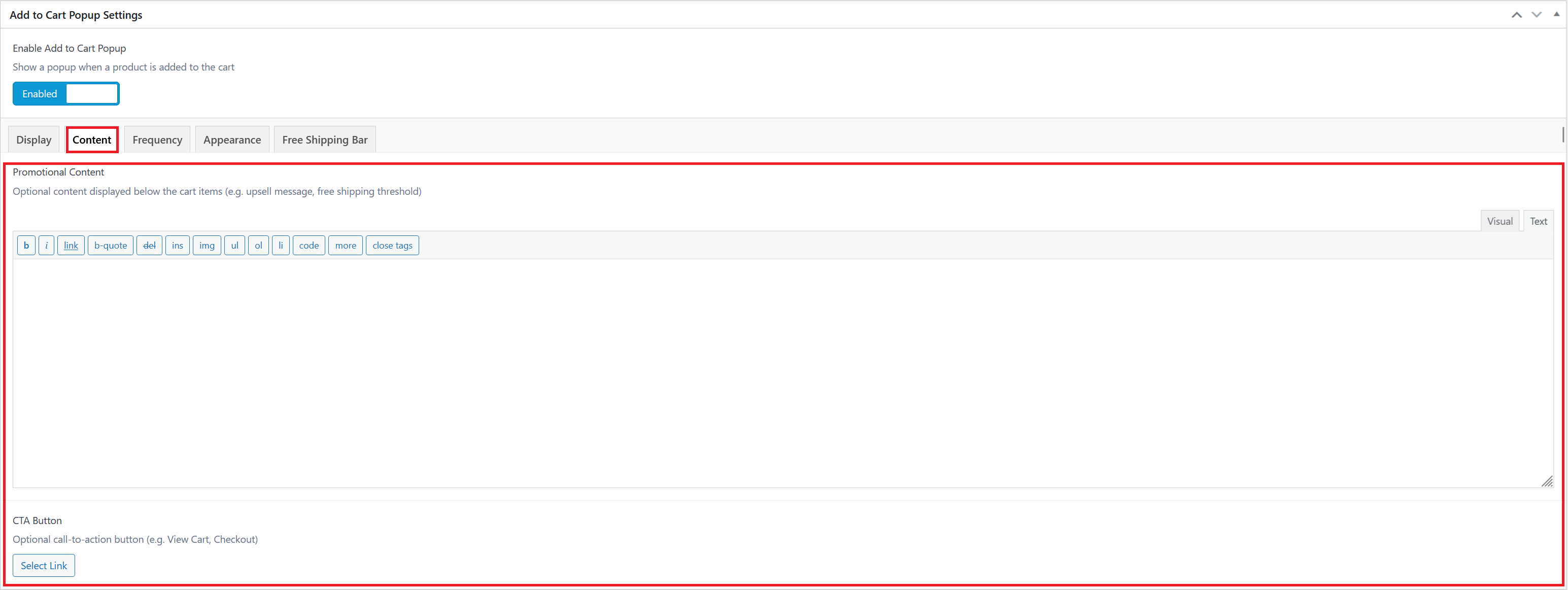
| Setting | Description |
|---|---|
| Promotional Content | Add a short message, offer, or upsell text under the mini cart. Keep this brief so the popup stays easy to scan. |
| CTA Button | Add an optional button, such as View Cart or Checkout. Click Select Link, choose the destination, then confirm the link. |
Frequency
Use the Frequency tab to control how often each visitor sees the popup.

| Setting | Description |
|---|---|
| Display Frequency | Choose Every time, Once per session, Once per day, Once per week, or Once. |
| Cookie Expiry | Sets how many days the popup frequency cookie lasts. This appears when the selected frequency uses cookies. |
| Max Displays | Limits how many times the popup can show per visitor. Set this to 0 for unlimited displays. |
For a standard shopping experience, use Every time so customers always get confirmation after adding a product to cart.
Appearance
Use the Appearance tab only when you need to override the default theme colours.

| Setting | Description |
|---|---|
| Background Colour | Changes the popup background colour. Leave blank to use the default white background. |
| Text Colour | Changes the main popup text colour. Leave blank to use the theme default. |
| Accent Colour | Changes accent elements, such as borders and CTA styling. Leave blank to use the theme default. |
Free Shipping Bar
Use the Free Shipping Bar tab to show customers how close they are to free shipping.
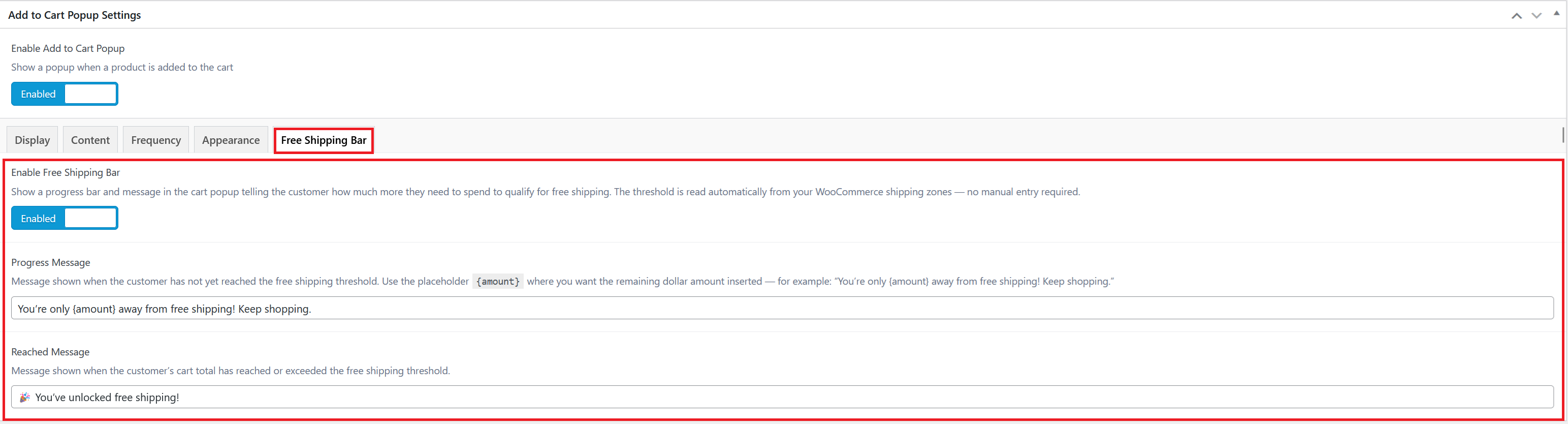
| Setting | Description |
|---|---|
| Enable Free Shipping Bar | Shows a progress bar and message in the popup. The free shipping threshold is read from WooCommerce shipping settings automatically. |
| Progress Message | Message shown before the customer reaches free shipping. Use {amount} where the remaining amount should appear. |
| Reached Message | Message shown after the cart total reaches the free shipping threshold. |
Example progress message:
You're only {amount} away from free shipping! Keep shopping.
Saving Changes
After editing the settings, click Update on the right-hand side to apply the changes.
